Cart
Your shopping cart is empty!
It's never too late to make things right :)



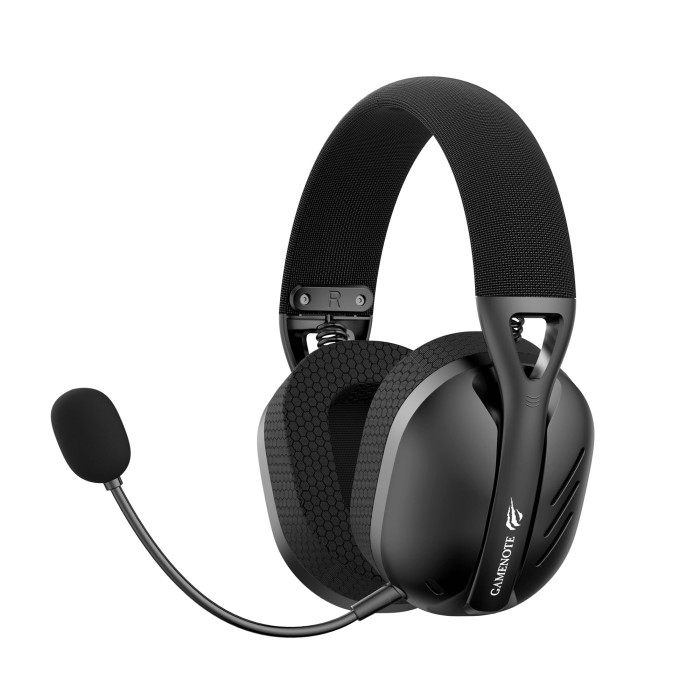
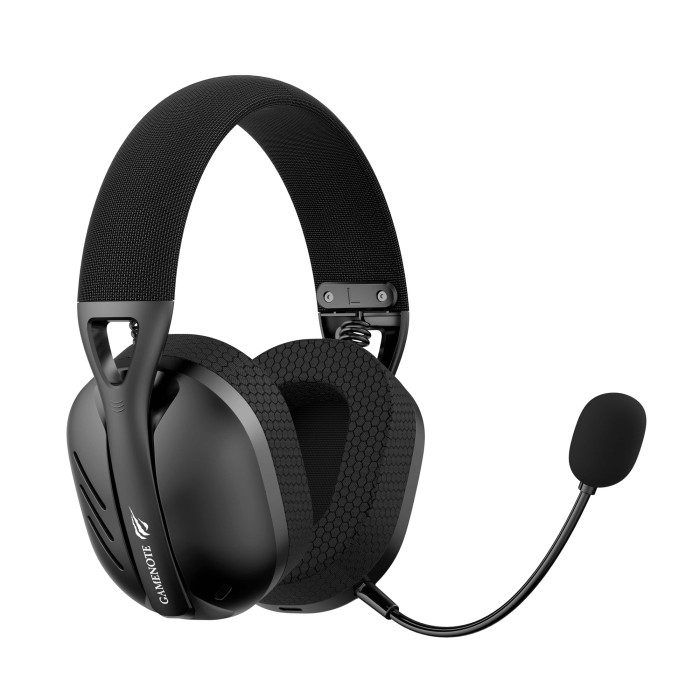
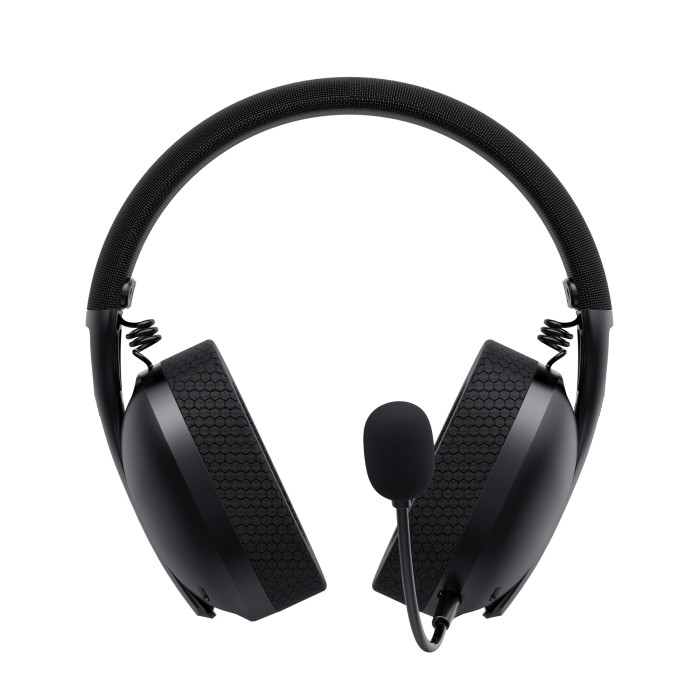
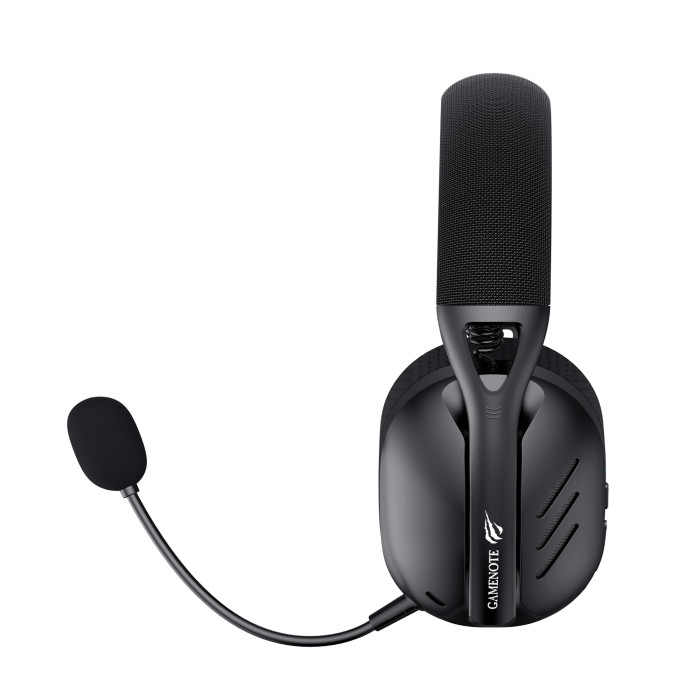
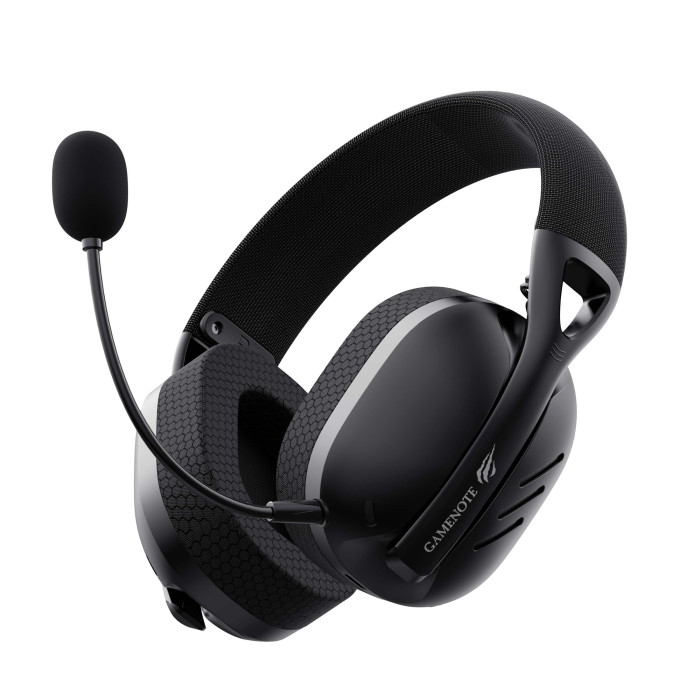
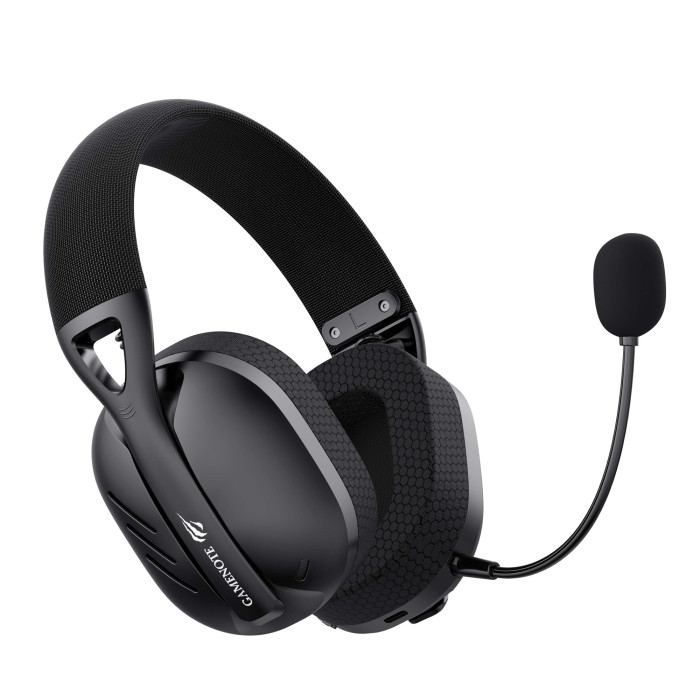


HAVIT Fuxi-H3 gaming headphones offer 4 connection modes: Bluetooth, 2.4G, USB-C, and AUX. Their two 40mm drivers allow you to enjoy high-quality sound both when listening to music and when voice chatting with other players or other people. These headphones produce immersive stereo sound, which creates a completely immersive audio experience by simulating three-dimensional sound. They are also equipped with high-performance 7.1 surround sound technology, which creates excellent sound effects, and specialized software allows you to customize the sound to your preferences. These headphones have low latency: 24ms in 2.4G mode, 80ms in Bluetooth mode.
They have an omnidirectional detachable microphone measuring 6x2.7 mm and a sensitivity of -42±3 dB.
The headphones can play for up to 26 hours depending on the volume level in Bluetooth mode and up to 23 hours in 2.4G mode. When the battery is low, an audible prompt sounds every minute. Then the headphones turn off. They have a built-in 600 mAh battery. They charge using a USB-C cable in approximately 3 hours.
The headphones are comfortable to wear thanks to a customizable headband and soft-fabric-covered ear pads. Weighing only 187g, they are easy to transport. The headphones feature microphone and headphone control buttons. A USB adapter is included, enabling the headphones to operate in 2.4G mode.
I. Bluetooth Mode – 1.1. Turn on the headphones by pressing and holding the power button ("Power Switch") for 3 seconds. To enter Bluetooth mode, press the power button twice more. You will hear the voice prompt "Wireless Mode." The indicator will flash and the voice prompt "Power On" will indicate that the headphones are ready to connect.
1.2. Turn on Bluetooth on the device you want to connect the headphones to, find and select "Fuxi-H3" on it. If the connection is successful, the indicator will turn on and you will hear the voice prompt "Connected".
1.3. After reconnecting, the headphones will automatically connect to the last connected device.
II. 2.4G Mode
2.1. To turn on the headphones, press and hold the power button for 3 seconds. The indicator will slowly flash to indicate that they are on.
2.2. Double-click the power button to enter Gaming Mode.
2.3. Insert the power adapter into the device you want to connect the headphones to.
2.4. Press and hold the Microphone Switch for 3 seconds. An audio prompt will indicate that they are ready to connect.
2.5. The headphones and power adapter will connect automatically. In this case, the indicator will be constantly lit. If the connection is unsuccessful, it will blink.
III. Connecting via USB-C
Insert the USB-C cable into the device to which you want to connect the headphones. To turn on the headphones, press and hold the power button for 3 seconds.
IV. Connecting via the audio jack (AUX)
When you connect the headphones to a device via the audio jack, they are automatically ready for use. However, in this mode, you cannot control the microphone and headphone functions!
Controlling headphone functions
1) To turn the headphones on or off, press and hold the power button for 3 seconds.
2) Switch between 2.4G/Bluetooth modes by double-clicking the power button, and between wired/wireless modes by connecting or disconnecting the cable.
3) Press or hold “Volume +” once to increase the volume, and “Volume -” to decrease it.
4) Press the power button briefly to play or pause music.
5) Double-click “Volume +” to play the next song and “Volume -” to play the previous one.
6) Press the Microphone switch once to turn the microphone on or off. You will hear a sound prompt if these actions are successfully completed.
7) To answer or end a call, briefly press the power button. To reject a call, press and hold the same button for 1.5 seconds (available only in Bluetooth mode).
8) Double-click the Microphone switch to switch between stereo and 7.1 surround sound modes. If these steps are successful, you will hear an audio prompt (available in USB-C and 2.4G modes).
Note: The volume, microphone, music playback, and connection buttons only work in wireless modes. In USB-C mode, only volume and microphone controls, and switching between stereo and 7.1 sound modes are available.
Indicator status:
- The red indicator lights when charging, and turns off after charging.
- The blue indicator flashes during a wireless connection, and stays on after connection.
- When the battery is low, the red indicator flashes and the "Battery Low" voice prompt sounds periodically, and the blue indicator on the USB adapter flashes. When the voltage is low (3.25V), the headphones turn off.
Precautions:
1. Charge the device using a USB-C cable from a computer or laptop. Avoid using high-power adapters. 2. Avoid spilling liquids on the device and keep it away from heat sources. 3. Do not block the device's ports. 4. Using maximum volume for extended periods may affect your hearing and the lifespan of the device. 5. Do not subject the device to mechanical damage or disassemble.
Warranty period: 1 year.
There are no reviews for this product.


