Cart
Your shopping cart is empty!
It's never too late to make things right :)



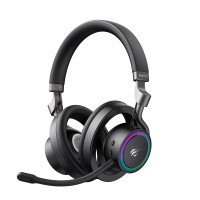


The HAVIT Fuxi-H8 wireless gaming headphones are a multifunctional model with 6 connection modes and realistic 3D spatial sound. Their design has won international awards: Awards.
The headphones have a durable housing made of a combination of plastic and aluminum. The ear pads have an open back, providing natural sound, better air circulation, and reducing pressure on the ears. For those who prefer more isolated sound, special ear pads are included that easily fit over the ear pads.
The headphones feature a detachable microphone with noise-cancelling technology, which minimizes background noise during calls and ensures clear voice transmission. The microphone position can be adjusted to suit your needs.
This model is equipped with RGB backlighting, which can be changed between dynamic and static modes.
The headphones are compatible with many devices thanks to 6 connection modes: Bluetooth, 2.4 GHz (USB-A), 2.4 GHz (USB-C), USB-C to USB-A audio cable, and USB audio cable. They have 3 sound modes: Spatial sound, Stereo sound, and Gaming mode. These headphones have a low latency of 28ms.
Using the buttons on the headphones, you can adjust the volume, control playback and calls, mute the microphone, and control the backlight.
The headphones can last up to 30 hours depending on the volume level and backlight in Bluetooth mode and up to 15 hours in 2.4GHz mode. They charge with a USB-C charging cable in approximately 4 hours.
The package includes ear pads, a USB adapter, a USB-C to USB-A audio cable, an AUX audio cable, and a USB-C to USB-C audio cable. The product comes with a 1-year warranty.
I. Bluetooth Mode
1.1. Turn on the headphones by pressing and holding the power button for 3 seconds. To enter Bluetooth mode, press the power button twice more. You will hear the voice prompt "BT mode, Pairing." The indicator light will flash when ready to connect.
1.2. Turn on Bluetooth on the device you want to connect the headphones to, find and select "Fuxi-H8" on it. If connected successfully, the indicator light will glow and you will hear the voice prompt "Connected."
1.3. After reconnecting, the headphones automatically connect to the last connected device.
II. 2.4GHz Mode (USB-A and USB-C)
2.1. To turn on the headphones, press and hold the power button for 3 seconds. The indicator light will flash slowly when they are on. Press the power button twice more to enter 2.4GHz mode.
2.2. Insert the power adapter into the device to which you want to connect the headphones. The headphones and power adapter will connect automatically. The indicator light will remain solid.
III. Connecting via a USB-C to USB-A/USB-C to USB-C audio cable
Insert the audio cable into the device to which you want to connect the headphones. To turn on the headphones, press and hold the power button.
IV. Connecting via the audio jack (AUX)
When you connect the headphones to a device via the audio jack, they are automatically ready for use. However, in this mode, you cannot control the headphone and microphone functions!
Controlling headphone functions
1) To turn on the headphones, press and hold the power button for 3 seconds. To turn them off, press and hold the same button for 3 seconds. When you turn off the headphones, you will hear a voice prompt "Power off".
2) Switch between 2.4GHz / Bluetooth by double-clicking the power button.
3) Switch between wired / wireless connection modes - by connecting or disconnecting the cable. Switch between 2.4GHz / Bluetooth / USB-C modes by double-clicking the power button.
4) Press the "+" button to increase the volume. When you reach the maximum volume level, you will hear a sound prompt.
5) To decrease the volume, press the "-" button. When you reach the minimum volume level, you will hear a sound prompt.
6) To play or pause music, press the power button briefly.
7) Double-click "+" to play the next song and "-" to play the previous one.
8) Press the microphone control button once to turn on or off. In 2.4GHz mode, when the microphone is turned on, the indicator on the adapter will constantly light, and when turned off, it will turn off. In Bluetooth mode, you will hear a voice prompt when you turn the microphone on or off.
9) To answer or end a call, briefly press the power button. To reject a call, press the same button for 1.5 seconds (available only in Bluetooth mode).
10) Switch between stereo sound modes, game mode, and spatial sound by briefly pressing the button located above the microphone control button. You will hear a voice prompt when you perform these actions (available in all modes except AUX).
Note: in Bluetooth mode, only spatial sound and stereo sound modes are available.
11) To turn on the backlight, double-click the microphone control button. This will turn on the dynamic RGB backlight. Another double-click will activate the static RGB backlight. To turn off the backlight, double-click the microphone control button.
To control more features of the headphones, install the driver from this link.
Charging
When the battery is low, an audible prompt sounds every minute. The battery is charged using the included USB-C cable. It is recommended to charge with a DC 5V, 1A power supply from a laptop or PC rather than a wall adapter.
Precautions:
1. Charge the device using a USB-C cable from a computer or laptop. Avoid using high-power adapters. Page 2. Avoid getting liquid into the product and keep it away from heat sources. Page 3. Do not block the ports of the device. 4. Using the maximum volume level for an extended period of time may affect your hearing and the lifespan of the device. Page 5. Do not subject the product to mechanical damage or disassemble.
There are no reviews for this product.


