Cart
Your shopping cart is empty!
It's never too late to make things right :)



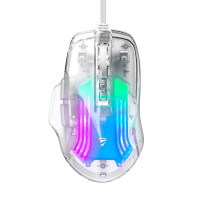
HAVIT HV-MS65WB Wireless Tri-Mode Mouse (2.4GHz + BT5.0) supports 2.4G and Bluetooth. Its DPI (1000-12000-1600) can be adjusted to suit your needs. The higher the DPI value, the faster the cursor moves with minimal mouse movement. A special advantage of the mouse is the ability to control three devices simultaneously and the presence of RGB backlighting. Its body has 7 buttons, including those that can be used to switch to the previous ("Back Button") or next ("Forward Button") page, adjust DPI, and also switch between 2.4G and Bluetooth modes ("Mode switch"). The product has a click lifespan of up to 3 million. The mouse is compatible with Windows, Linux, and Mac OS. It runs on a built-in battery and is charged via USB-C. The mouse comes with an adapter used to connect to a computer. There is a special compartment on the back panel where you can insert it to prevent loss during transportation.
To configure 2.4G mode, toggle the power button up to "ON" and insert the adapter into the
Connecting to Windows via Bluetooth
1. To enter wireless mode – 1, press the "Mode switch" . After the green light flashes, press and hold the same button for 3 seconds. The green light will flash rapidly to indicate that the device is ready to connect. Page 2. Go to the "Bluetooth devices" tab on your computer. Click "Adding or deleting Bluetooth devices." Page 3. Your computer will begin searching for devices to connect to. From them, select the MS65WB-1 and click Matching. 4. To enter wireless mode – 2, press the "Mode switch button". After the blue indicator starts blinking, press and hold the same button for 3 seconds. The blue indicator will blink faster to indicate that it is ready to connect. Page 5. Go to the "Bluetooth device" tab on the computer. Click "Adding or deleting Bluetooth devices". 6. The computer will start searching for devices to connect. From them, select the MS65WB-2 and click Matching.
Connecting to Mac OS via Bluetooth . Press the "Mode switch" button. After the green indicator flashes, press and hold the same button for 3 seconds. The green indicator will flash faster to indicate that the device is ready to connect.
II. Go to the "System preference setting" tab on your computer. Click "Bluetooth".
III. The computer will search for devices to connect to. Select "MS65WB-1/MS65WB-2" and click "Matching".
Switching between three devices
To switch between 2.4G and Bluetooth modes, press the "Mode switch" button. If the wireless mode is 1, the green indicator lights up, and if the wireless mode is 2, the blue indicator lights up.
Recommendations
If you are unable to connect the mouse to your computer, try the following:
- Make sure the computer is turned on.
- Make sure you are in the correct mode.
- Move the adapter to a different USB port or reconnect it.
- Adjust the distance between the device and the adapter.
The product has a 1-year warranty.
There are no reviews for this product.